

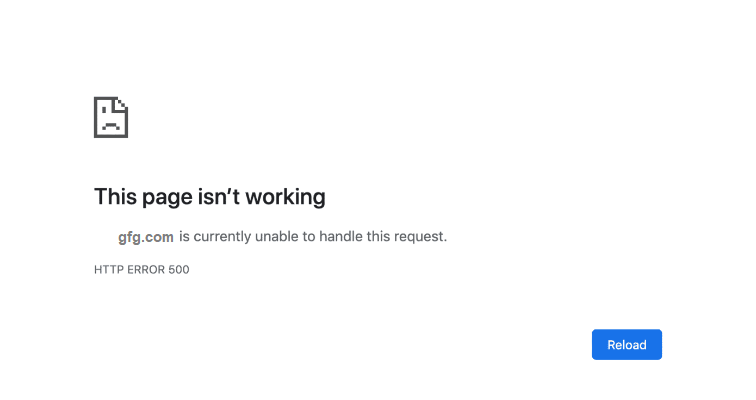
If you’ve ever visited a website and suddenly seen a scary message like “500 Internal Server Error”, you’re not alone. This error — often just called a 500 error — is one of the most common issues that can confuse users and frustrate website owners.
But the good news is, the internal server error 500 doesn’t always mean something is broken forever. It simply means the web server encountered a problem it couldn’t describe clearly. And with the right approach, you can find the cause and fix it.
In this article, we’ll explain what a 500 error is, why it happens, and how to troubleshoot and fix a 500 Internal Server Error — step by step. We’ll keep it simple, so even beginners can follow along.
What Is a 500 Internal Server Error?
A 500 internal server error is a generic message that tells you the server (the computer hosting a website) encountered an unexpected problem that it couldn’t handle. It doesn’t explain exactly what went wrong — just that something did.
In simple terms:
- The server tried to load a page.
- Something went wrong on the server side.
- The server didn’t know how to continue.
- So it showed a 500 error.
This is different from errors like “404 Not Found,” which clearly tells you something wasn’t there. With a 500 error, the issue is internal — meaning the server itself failed.
Common Causes of a 500 Error
Here are some of the most frequent reasons you might see an internal server error 500:
1. Problems in Code
Errors in the website’s programming code (PHP, Node.js, Python, etc.) can crash a page.
2. Server Configuration Issues
Incorrect settings in web server files like .htaccess can break the server.
3. Permission Errors
If file permissions are too restrictive or too open, the server may refuse to load them.
4. Outdated Software
Running outdated frameworks, plugins, or CMS versions (like WordPress) can cause conflicts.
5. Server Overload
Too much traffic or limited server resources can overwhelm the system.
6. Misbehaving Plugins or Extensions
Third-party add-ons may conflict with your code and lead to a 500 error.
How to Fix a 500 Internal Server Error
Depending on whether you’re a visitor or a website owner, the steps below are different.
If You Are a Visitor
Sometimes the problem isn’t on your end. Try these first:
1. Refresh the Page
Press F5 or click the reload button. Sometimes the issue is temporary.
2. Clear Your Browser Cache
Old cached files may cause errors. Clearing your cache often fixes the issue.
3. Try Again Later
If the server is overloaded, waiting a few minutes may resolve the problem.
If the error still shows, the issue is likely on the website’s server.
If You Are a Website Owner or Developer
1. Check Server Logs
Server logs often contain detailed error messages. Look at logs in your hosting panel or through SSH to identify the issue.
2. Check .htaccess File
If you use Apache, errors in .htaccess can cause a 500 error. Rename or remove it temporarily to test.
mv .htaccess old.htaccess
If the site works after removing it, the problem was in that file.
3. Check File Permissions
Incorrect permissions can cause the server to refuse access.
Common settings:
- Files: 644
- Folders: 755
Use FTP or your hosting panel to adjust.
4. Check for Coding Errors
If you recently updated code or deployed new features, trace back to recent changes. Syntax errors or missing files often trigger a 500 error.
5. Disable Plugins or Themes
If you use CMS platforms (like WordPress), a bad plugin can cause an internal server error 500.
Disable all plugins:
- Go to your plugin folder
- Rename the plugins folder
- Test the site
If it works, enable one plugin at a time to find the culprit.
6. Upgrade or Reinstall Software
Outdated server software (PHP, frameworks, libraries) often causes conflicts.
- Update PHP version
- Update CMS
- Update libraries
This is a common step in software development environments where best practices require up-to-date platforms.
7. Check Server Resources
Low memory or CPU limits can trigger a 500 error. Contact your hosting provider or upgrade your plan.
Final Thoughts
A 500 internal server error can feel frustrating because it gives no clear explanation. But with the right steps — like checking logs, disabling plugins, and fixing configuration — it’s usually easy to identify the cause.
Whether you’re a site owner, a developer, or a curious visitor, understanding what the 500 error means and how to approach it makes troubleshooting much easier.
Need help fix a 500 internal server error or building reliable web systems? Lean on trusted software development USA teams who routinely solve these issues and keep apps running smoothly.